VS Remote - MariaDB C++ Connector - Installation Guide
In this short lecture I'll show you how to setup MariaDB on a linux server and install the C++ connector so you can develop remotely using Visual Studio Community.
1- Installation of MariaDB
2- Installation of the CPP connector
3- Link Remote MariaDB Connector to Visual Studio
VS Remote - MariaDB C++ Connector - Installation Guide
1) MariaDB Installation
First update your package index using apt and then install mariadb-server.
sudo apt update
sudo apt install mariadb-server
Run the included security script to restrict access to your mariadb server:
sudo mysql_secure_installation
This will take you through a series of prompts where you can make some changes to your MariaDB installation’s security options. The first prompt will ask you to enter the current database root password.
In Debian systems running MariaDB, the root user is set to authenticate using the unix_socket plugin rather than with a password. This allows for some greater security and usability in many cases, but it can also complicate things when you need to allow an external program (e.g., phpMyAdmin) administrative rights so we will create an admin user later.
- 1 Setup your root password: *******
- 2 It will prompt you to use Unix Socket: Yes
- 3 Change the root password? No we just set it up in step 1
- 4 Remove anonymous users ? Yes
- 5 Disallow root login remotely ? Yes
- 6 Remove test database and access to it ? Yes
- 7 Reload privilege table now ? Yes
Let's create our admin user. This user will have the same capabilites as the root account, but will be using password authentification, so we'll be able to use it remotely. To do this:
sudo mysql
Create the admin user with root privileges. You change the username and use your own password to match your preferences:
MariaDB [(none)]> GRANT ALL ON *.* TO 'admin'@'localhost' IDENTIFIED BY 'PASSWORD_CHANGE_ME' WITH GRANT OPTION;
Then Flush privileges to ensure that they are saved and active:
MariaDB [(none)]> FLUSH PRIVILEGES;

# exit:
MariaDB [(none)]> exit
Ensure that MariaDB will start running automatically, check its status:
sudo systemctl status mariadb
If it's active(running) and there are no errors in the command lines at the bottom then you're good to continue. If it's not running you can always use the command: sudo systemctl start mariadb.
To create a mysql dev user with restricted rights you can use these commands (Change username and password fields with yours):
sudo mysql
# Create a new user:
CREATE USER 'username'@'localhost' IDENTIFIED BY 'password';
# Create a Dev DB:
CREATE DATABASE dev;
# Give the rights to the dev user on the dev db
GRANT ALL PRIVILEGES ON dev.* TO 'username'@'localhost';
# Quittez le prompt mysql
exit
To connect to a MariaDB user (admin or dev) using the command line you can type:
# change username by yours
mysql -u username -p
2) Install MariaDB C++ Connector
First we need to install the mariadb C connector using apt:
sudo apt install libmariadb3 libmariadb-dev
Then let's download the MariaDB C++ Connector. To do so go to https://mariadb.com/downloads/connectors/connectors-data-access/cpp-connector, then select Connectors > Product: C++ Connector > Version: Choose the one that fit your need > OS: pick up the one for the OS you're using.

Instead of clicking on download just copy the link on the left of the download button and use it to download the connector directly from your linux server using wget:
sudo apt install wget

# wget https://dlm.mariadb.com/1683461/connectors/cpp/connector-cpp-1.0.1/mariadb-connector-cpp-1.0.1-debian-buster-amd64.tar.gz
wget URL_YOU_COPIED
Then let's install it. Start by extracting the tarball and go into the relevant directory:
tar -xvzf mariadb-connector-cpp-*.tar.gz
cd mariadb-connector-cpp-*/
Install the directories for the header files:
sudo install -d /usr/include/mariadb/conncpp
sudo install -d /usr/include/mariadb/conncpp/compat
Install the header files:
sudo install include/mariadb/* /usr/include/mariadb/
sudo install include/mariadb/conncpp/* /usr/include/mariadb/conncpp
sudo install include/mariadb/conncpp/compat/* /usr/include/mariadb/conncpp/compat
Install the directories for the shared libraries:
sudo install -d /usr/lib/mariadb
sudo install -d /usr/lib/mariadb/plugin
sudo install lib/mariadb/libmariadbcpp.so /usr/lib
sudo install lib/mariadb/plugin/* /usr/lib/mariadb/plugin
3) Connect Visual Studio To Maria DB C++ Connector:
Install everything required for compiling basic software written in C and C++ on your server: Click here for more infos
sudo apt update
sudo apt-get install g++ gdb make ninja-build rsync zip
I'd suppose you have installed the Visual Studio Linux Cross-Platform extension (You can download it using the Visual Studio Installer) and created a Linux Remote Development project.
Let's connect to our server. Open Visual Studio and Go to Tools > Cross Platform > Connection Manager. Then click on Add and connect to your server using ssh. I'd recommend to use a user without root privileges.

Fill up the form and then click on connect:

You can learn more on how to connect to a remote linux server by clicking: here
Then let's configure our project to use MariaDB. Go to your Project Properties --> C / C++ --> General. At the Additional Include Directories option add Add /usr/include/mariadb/

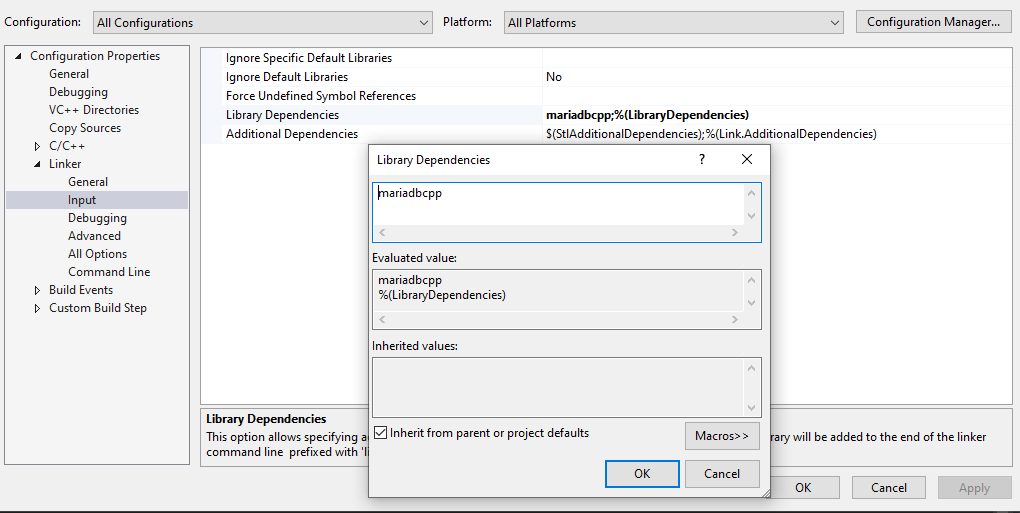
Then let's link the application with the MariaDB Connector/C++ shared library. Go to Project Properties --> Linker --> Input and then in the Library Dependancies Box add mariadbcpp. Then Click Ok to save your changes. (For some reasons if it fail to link you can use the command line option scroll down below)
In your headers files just include #include <mariadb/conncpp.hpp> to use mariadb.
To see how to create a Test App and connect to the database please refer to the example in the documentation here: https://mariadb.com/docs/clients/mariadb-connectors/connector-cpp/example-setup/
You're all set now ! Sometimes Visual Studio can be tricky the first time you'll include mariadb connector, if you have any problem restart it and it should work fine !
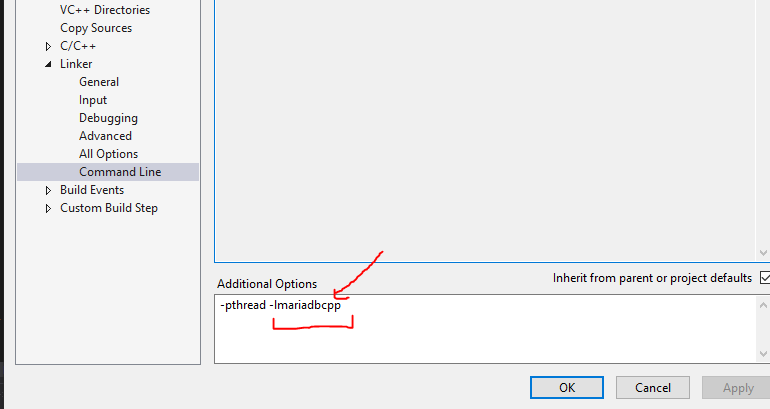
(Linker Bug Fix) Use the Command Line Option for the Linker
You can link the application with the MariaDB Connector/C++ shared library using the -lmariadbcpp argument. Go to Project Properties --> Linker --> Command Line and then in the Additional Options Input Box at the bottom add -lmariadbcpp Then Click Ok to save your changes. This option is not the one I recommend but it can be helpful if the previous one failed.